Hi everyone,
I have a very important thing to say for today, this website will move to my own domain because my dad say if i work on this website I can configure easily.
If you want to go to my new website Click Here
Sunday, 1 November 2009

Thursday, 29 October 2009
What Your IP Address?
Many people need their IP address certain things to configure etc. Also, many people keep having problem looking for their IP address. Well, now you can look for your IP address less than 1 minute. To do this you simply:

- Go to start
- Select run
- Type in 'cmd'
- Now windows will pop up with black background and white text(it is called command prompt)
- At command prompt, type in 'ipconfig'


Test If Your Antivirus Program Working or Not By Using Notepad
This work is just for testing your antivirus program working or not. To do this you simply:
Cheers!
- Go to start
- Select all programs
- Then click accessories
- Click Notepad
- Now copy and paste this following code:X50!P%@AP[4\PZX54(P^)7CC)7}$EICAR-STANDARD-ANTIVIRUS-TEST-FILE!$H+H+*
- Save the notepad, call it 'fakevirus.exe'.
- Now if you saved it and it immediately deleted
- It mean your antivirus program is working properly with high defense
Cheers!
Display Any Name on Your Start Button
Do you like your name or characters name? Well now, if you like to 'Display Any Name on Your Start Button'. Why don't you have a go doing this thing which is very simple thing to do. This changes will makes your start button have a name/the thing you write down.
First of all, you need a freeware called 'Resources Hacker'. This freeware is 100% legal and there is no such things as virus or malwares etc. This program utility help you to view, modify, rename, add, delete and extract resources in 32bit Windows executables and resource files (*.res). It incorporates an internal resource script compiler and decompiler and works on Win95, Win98, WinME, WinNT, Win2000 and WinXP operating systems. The part we need is just for compiling.
Ok, now to the work. To change your start button name you need to do the following:
Cheers!
First of all, you need a freeware called 'Resources Hacker'. This freeware is 100% legal and there is no such things as virus or malwares etc. This program utility help you to view, modify, rename, add, delete and extract resources in 32bit Windows executables and resource files (*.res). It incorporates an internal resource script compiler and decompiler and works on Win95, Win98, WinME, WinNT, Win2000 and WinXP operating systems. The part we need is just for compiling.
Ok, now to the work. To change your start button name you need to do the following:
- Go to start
- Go to (C:\WINDOWS)
- Search for explorer.exe(its shows an icon of a computer)
- Now, copy and paste to a temporary file
- Name it, your choice i.e family(the start button will apply to what this is called)
- Open Resource Hacker
- Click file then click open
- Now get the renamed explorer.exe
- Click ok
- Ok, from the left hand side click '+' on string table
- Select 37
- Then 1033
- There a word start somewhere on right hand side, erase 'start' and put the renamed explorer.exe i.e blue
- Click compile file
- Then save it
- Go to regedit(Start->Run->type in regedit
- Now, go to(My Computer\HKEY_LOCAL_MACHINE\SOFTWARE\microsoft\Windows NT\Currentversion\Winlogon)
- When clicking 'Winlogon', don't click the '+' just click on the word
- On the right hand side show some list of different file
- Search for a file called 'Shell' and click it
- Windows will pop-up
- On the 'value data' type in the renamed explorer.exe i.e blue
- Click ok
- Exit & reboot
Cheers!
Wednesday, 28 October 2009
How to change your theme/taskbar
Do you wish to change your theme from the boring XP theme to some funky, neat, beautiful or more kind of theme. Well, now you can change your theme or anything you want. If you want to download some of the theme, i think the best website for it is Customize.org. You can search almost everything there. For me, my favourite theme is probably Royale Noir. If you wish to download my favourite theme CLICK HERE. If you are struggle to use your theme. Just follow my instruction:
Once download finish:
When you're there, select Appearance tab then change your setting and click apply then ok. Then you finish.
Note.
Some of the theme you don't have to put in the folder because some of them have setup to put the file in the right folder.
Once download finish:
- You need .rar program e.g. 7-zip or winrar(the best two)
- Open it using the .rar program
- Extract it to(C:\WINDOWS\Resources\Theme)
- Go to the extracted file
- Double the file with the paint brush on it
- A pop-up will appear
- Choose your setting
- Click Apply
- Click OK
When you're there, select Appearance tab then change your setting and click apply then ok. Then you finish.
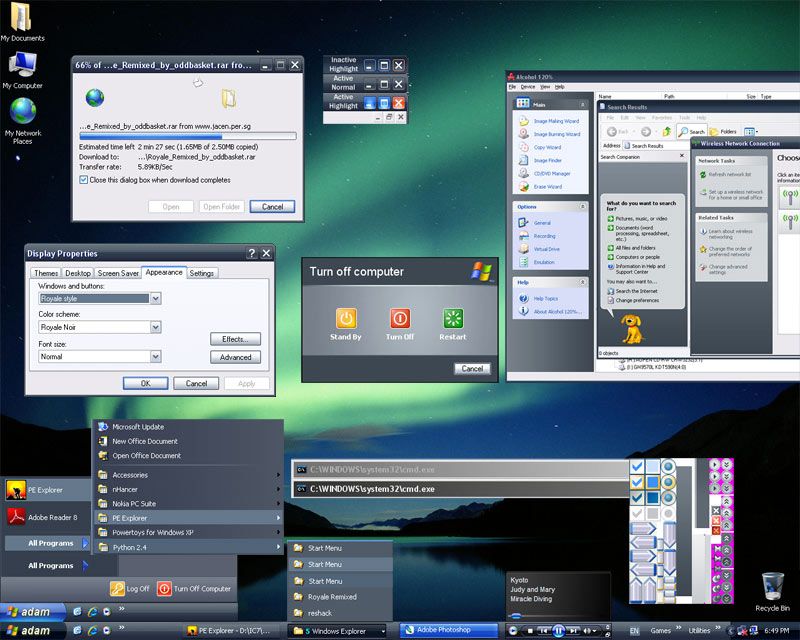
Note.
Some of the theme you don't have to put in the folder because some of them have setup to put the file in the right folder.
Vistart?
Vistart is a second resources that is made by Lee-Soft. Vistart is actually the vista start menu(not button). If you don't know how its looks like, do look below

What do you think of it? Is it neat and beautiful?
This resources is again free and legal. And, there no such malware in this resource. If you wish to download this resource. Just simply CLICK HERE. This resources contain approximately 946kb, and you know that is really small.
If you have any problem at all, just post a comment.
Cheers!

What do you think of it? Is it neat and beautiful?
This resources is again free and legal. And, there no such malware in this resource. If you wish to download this resource. Just simply CLICK HERE. This resources contain approximately 946kb, and you know that is really small.
If you have any problem at all, just post a comment.
Cheers!
Viorb?
Do you know what's actually Viorb. Well if you want to know, have a guess first. Ok, Viorb is actually a vista start button which was made by 'Lee-Soft'. If you don't know how vista start button looks like, look at the picture below

What do you think of it? Is it nice?
If you think it is, read on. This neat resource is 100% legal and free and no virus, adware and spyware(if it do, comment me). If you want to download this which contain low amount of memory(less than 1Mb), CLICK HERE.
If you want to open it you just double click 'viorb one step.exe' then it will automatically run and open the resources. If you want to close it, you simply left-click on the icon on the icon tray on left bottom hand corner then select exit.

What do you think of it? Is it nice?
If you think it is, read on. This neat resource is 100% legal and free and no virus, adware and spyware(if it do, comment me). If you want to download this which contain low amount of memory(less than 1Mb), CLICK HERE.
If you want to open it you just double click 'viorb one step.exe' then it will automatically run and open the resources. If you want to close it, you simply left-click on the icon on the icon tray on left bottom hand corner then select exit.
Tuesday, 27 October 2009
Speed Up Startup
Speeding up your startup is a good idea because it can make your computer load faster when it is starting up or when you opening it. So, you don't really have to wait for a couple of minute if it is slow like my old computer. OK, to do this you simply just:
- Go to start
- Click run
- Type in 'msconfig' in the box
- Click startup tab
- Then, unchecked the program that you don't want to run when you starting up.
5 Ways To Make your Computer Faster
What it Do?
It will fast your computer and give you better performance. It will take less delay for loading your stuff like your icon desktop and many more.
The Way:
Remove your font for speed, this will give you a little bit of speed. Especially 'TrueType', if you struggle to find it its the green 0 which have bracket on their word say 'TrueType'. Create a new folder where you can put it, in case if you need other fonts. You could called the folder 'FontsBackup'
It will fast your computer and give you better performance. It will take less delay for loading your stuff like your icon desktop and many more.
The Way:
Remove your font for speed, this will give you a little bit of speed. Especially 'TrueType', if you struggle to find it its the green 0 which have bracket on their word say 'TrueType'. Create a new folder where you can put it, in case if you need other fonts. You could called the folder 'FontsBackup'
- Open control panel(classic view)
- Open fonts folder
- Move fonts you don't need to a temporary directory (e.g. C:\FontsBackup) just in case you need or want to bring a few of them back. The more fonts you uninstall, the more system resources you will gain.
- Right click on desktop and select properties
- Select the desktop tab
- In the background window select none
- Click ok
- Click start then select my computer
- Click tools menu at the top bar
- Then select the view tab
- Unchecked the Automatically search for network folders and printers check box
- Click Apply
- Click ok
- Reboot
- Go to Start
- Click Control Panel
- Click System
- Click Advanced tab
- In the Performance tab click Settings
- Leave only the following ticked:
- - Show shadows under menus
- Show shadows under mouse pointer
- Show translucent selection rectangle
- Use drop shadows for icons labels on the desktop
- Use visual styles on windows and buttons
- Right click on My Computer and select Properties
- Select the Advanced tab
- Under Performance choose the Settings button
- Select the Advanced tab again and under Virtual Memory select Change
- Highlight the drive containing your page file and make the initial Size of the file the same as the Maximum Size of the file.
Hi!
Hi!
I'm am here planning doing a blog for all of you about how computer can be fixes. In this blog I will trying to show most of the trick of how your computer can be fix such as how to make your computer faster than before and more. If you want to find out more fixes, keep reading....
Cheers!
I'm am here planning doing a blog for all of you about how computer can be fixes. In this blog I will trying to show most of the trick of how your computer can be fix such as how to make your computer faster than before and more. If you want to find out more fixes, keep reading....
Cheers!
Subscribe to:
Posts (Atom)